
 Search
Search
[{{{type}}}] {{{reason}}}
{{/data.error.root_cause}}
{{{_source.title}}} {{#_source.showPrice}} {{{_source.displayPrice}}} {{/_source.showPrice}}
{{#_source.showLink}} {{/_source.showLink}} {{#_source.showDate}}{{{_source.displayDate}}}
{{/_source.showDate}}{{{_source.description}}}
{{#_source.additionalInfo}}{{#_source.additionalFields}} {{#title}} {{{label}}}: {{{title}}} {{/title}} {{/_source.additionalFields}}
{{/_source.additionalInfo}}- Details
- Category: Hardware
-
By Jason Gress
- Hits: 3100
Corsair Vanguard 96 Mechanical Gaming Keyboard

Corsair Vanguard 96 Mechanical Gaming Keyboard
Specifications:
Mechanical Keyboard with Corsair MLX Plasma linear switches
96% key layout, with additional macro buttons, and game mode button
Integrated 1.9" 320x170 IPS LCD display
Multi-function rotary dial
150 Million Keystroke Lifetime
Detachable 1.8m USB-C to USB-A 2.0 cable
Up to 8,000Hz Polling Rate
8MB Onboard memory with up to five onboard profiles
RGB LED backlit keys, fully customizable with Corsair Web Hub
Five dedicated macro buttons
Dedicated Game Mode button
Complete and powerful macro functionality
FlashTap for A/D keys (customizable!)
Two Sound Dampening Layers
PBT Double-Shot Keycaps
Included wrist rest
Two-Year Warranty
MSRP: $179.99
(Amazon Affiliate Link)
Thank you Corsair for sending us this keyboard to review!
As most gamers use their keyboard on their desks next to their mouse, smaller and smaller keyboard form factors have become more popular. As you might suspect, those who play competitive shooters prefer having as much desk space as possible for their mouse, so a big and bulky keyboard is a nuisance. At the same time, there are some who really like having a number pad available. This might include those who enter a lot of numbers, like many who fight with excel or accounting by day, and game by night. Others might include those who have a lot of muscle memory for entering IP addresses, authenticator codes, and other more mostly numerical inputs. Whatever the case, some just love their number pads but want a more compact keyboard. To meet this need, the 96% layout was created, and Corsair used it for this unique keyboard, the Vanguard 96.
In a full-size keyboard, there are a few main regions. Of course there is the main typing area, that is included on pretty much all 60% keyboards and larger. The next area is the function key row, which is included on pretty much all keyboards 75% or larger. Then, there is the arrow key cluster and navigation keys. The arrow keys are loved by many, so most layouts accommodate them. The navigation cluster is the group of six keys above the arrow keys; these are the Ins/Del/Home/End/PgUp/PgDown keys. The final cluster is of course the number pad, complete with the num lock (number lock) button, and the math operators. The 96% layout includes pretty much everything but the navigation cluster.
An interesting aspect of the number pad is that all keys are duplicates on a full-sized keyboard. Outside of the num lock key, every other key is also somewhere else on the keyboard. (That's a big reason why the tenkeyless, aka TKL layout is so popular.) With num lock enabled, the eleven keys (9876546321.0) use their numerical function. However, with num lock disabled, they become PgUp, Up, Home, Right, (nothing), Left, PgDown, Down, End, Delete, and Insert respectively. The functions are all useful (except 5), but are hidden behind disabling num lock. On a full-sized keyboard, I always leave num lock on, because the navigation cluster and arrow keys are right there for the other functions. However, on this 96% layout, I often find myself turning num lock off, because easy access to PgUp/PgDn/Home/End is critical for me when I type or work. It's important to note that macOS users do not have num lock available, so the number pad is always numbers; as a result those extra functions are not available. In that case, you'll have to access them via Fn + other keys; more on that later.
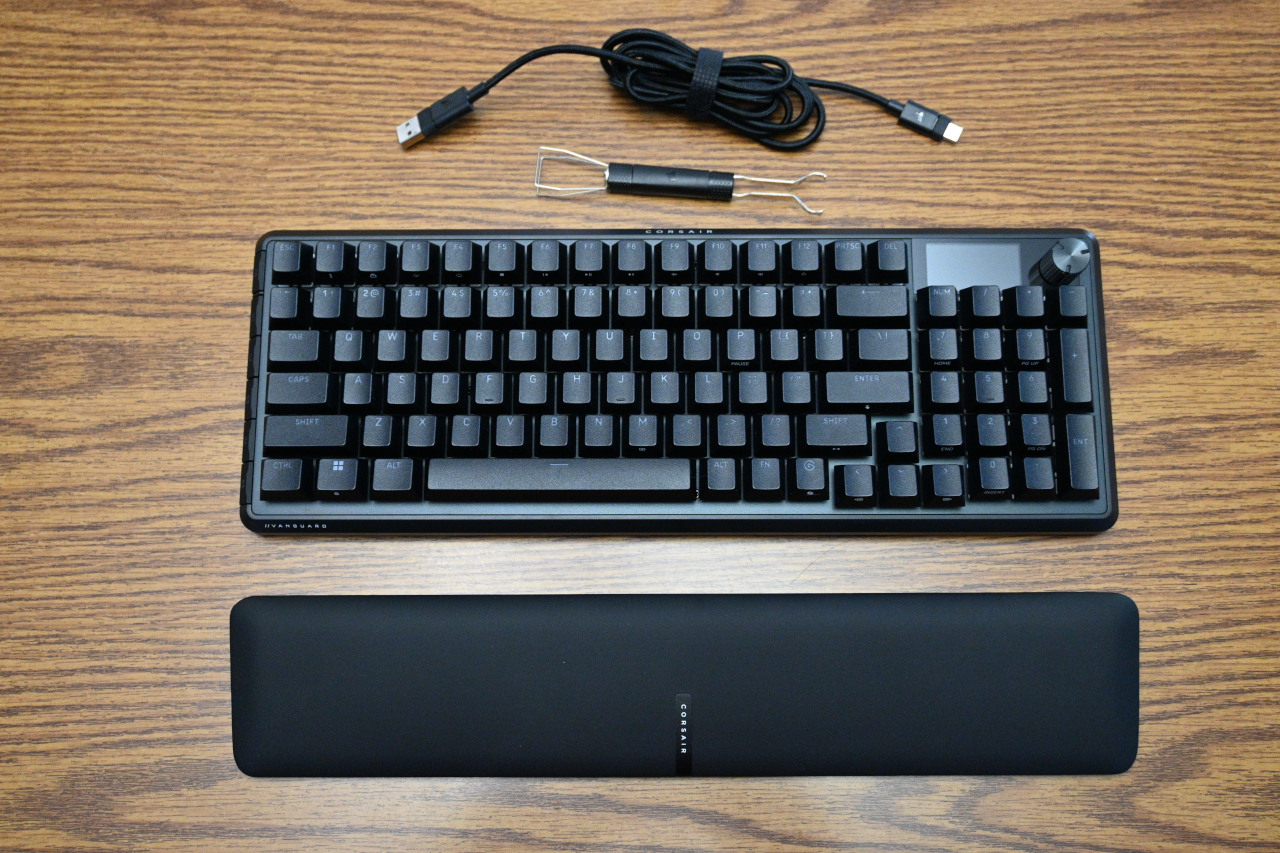
The Vanguard 96 is an interesting design, and an evolution of other more recent models. It most closely resembles the K70 Pro TKL and K70 Core TKL in design language, rather than the larger models I reviewed before those like the K70 MAX. Thankfully, that design carries forward the excellent typing feel and sturdy build that makes it to great to type on.
The keyboard is built well, with a sturdy plastic shell and an aluminum top plate. I can't tell how thick the top plate is, but typing feels sturdy. The plastic used has a texture that makes it feel reasonably high quality. There is virtually no twist or give in the chassis, and the top plate is extremely firm. The build and design seems high quality, though perhaps a tad short of premium like all-aluminum keyboards offer. Even still, I doubt anyone would be disappointed.
One the far left side of the keyboard there is a row is six special buttons that are embedded into the angled side of the board. One is meant to toggle Game Mode, while the others, labeled G1 - G5, are general use macro buttons. I really like how these buttons are placed in such a way that you can safely ignore or avoid them, while their presence takes up no additional desk space. It's a fantastic design that I hope they bring forward to other new keyboards.
Thankfully, Corsair has joined many other keyboard makers in using keyboard switch sockets instead of soldered in key switches. Each switch is fully removable, allowing any user to hot swap any key switch. The Vanguard 96 uses the five-pin standard on the socket, so it works properly with any five- or three-pin switch. The included Corsair MLX Plasma mechanical switches are quite lovely; there are four switch types available, but I can only speak to what I have. I compared it to another set of switches I purchased a while back, the Leobog Graywood V3, and I prefer the Corsair's slightly, as they have a bit more travel. They feel really good, and sound just fine - though that's something that's quite a matter of perspective. They have nice travel, and have a gentle but satisfying snap when typing. Because the keys are mounted on a plate rather than in a shell, the sounds are a bit brighter and clacky rather than deeper and marbley. While it does make a noticeable typing sound, the sound dampening layers do keep away much unnecessary rattle.
One of the distinctives of this line of keyboards is the return of the multi-purpose knob, and the accompanying 1.9" 320x170 LCD display. The K70 Core TKL and Pro TKL both have a similar knob, but the screen is wholly new. I'll cover this in more detail later, but this screen brings a lot of utility, and makes the many features available via that multi-purpose knob really come to life in a way that a mere key color from the previous implementation just couldn't. Thankfully, the knob has a nice and premium texture, and the etching on it looks and feels great.
The nice feel continues onto the keycaps, which I'm pretty sure are PBT (a type of plastic), though I'm not certain of this since I don't see it mentioned anywhere. I do not yet have enough different keycaps samples in my collection to where I can be certain of the different types plastics used; I can identify hard/smooth ABS easily enough, but my 'PBT sense' needs work. Either way, the keycaps feel good, and most should be satisfied. It's important to note that while the shape and size of the keycaps seems pretty standard, there are extra labels on many of them that fall outside what you'd expect to see on replacement keycaps. Thankfully, you can always refer to Corsair Web Hub from almost any computer and see what each key does in case you forget.
Strong Points: Very customizable; feels premium; the wrist rest is really nice; 8,000Hz polling rate can be set for just Game Mode; FlashTap works really well for the right games; LCD screen looks great and shows useful information; multi-function rotary dial is really neat; nice typing feel and sound; USB-C port for removable cable; very compact layout for a keyboard that includes a number pad; onboard profiles with flexible key mapping in Corsair Web Hub; Corsair Web Hub works in Windows, macOS, and Linux
Weak Points: Layout is not for everybody; a few key features cannot be remapped; some functionality not yet available (as of writing); macOS works but has some caveats
Speaking of the Web Hub, a small but growing list of Corsair accessories are being supported on it. It's currently a rather small list; only five as of this writing, but it's expected to grow. Compared to iCUE, I in some ways prefer it; it has support for other operating systems, and using the right web browser, even Linux works. As someone who uses Linux on several computers, and even plays a large number of games on it, the more support the better for an operating system whose install base is small but growing. One major downside is that you can't easily configure it without access to the internet, and if Corsair takes the Web Hub down for any reason, you might be impacted. Even so, having it work in other operating systems like Linux is a great benefit, at least for me.
During my testing, I discovered that Linux support might not work out of the box. Luckily for you, I happen to be a Linux administrator by day, and after running into the problem where the Web Hub worked on some PCs but not others, I spent time figuring out why. As it turns out, you need a custom udev rule to get this to work on Linux reliably. I know that most of this readership uses Windows; feel free to skip this section, but I'm going to teach you how to make this work. Even so, I assume you are somewhat familiar with Linux basics; this review is not a Linux training class. Hopefully this gives you enough information to get it working; if not, please ask your friendly neighborhood sysadmin for assistance.
Please open the following spoiler for the Linux instructions:
Back to our regularly scheduled multiplatform review. To access the Web Hub, the URL is: https://www.corsair.com/web-hub/index.html
You need to use a Chrome-compatible browser to configure the keyboard. For flashing firmware, you must use Google Chrome, Microsoft Edge, or Opera. The reason that Chrome-compatible browsers don't work for firmware updates is that Chrome ships a closed-source module for flashing firmware that the tool needs. Corsair is not the only vendor who uses a web interface that runs into this problem. Chrome for Linux also works, even if it's not officially supported by Corsair. The good news is that basic configuration works on most, if not all, Chrome-compatibles; even my preferred Brave works just fine.
Once you connect to the website and authorize the keyboard for access, you can configure quite a few things, with a fairly intuitive interface. First you can choose a profile; I believe five can be stored onboard, but I'm not certain if this is based on the number of profiles or how much onboard memory each take. Within a profile, you can set Lighting Effects, Key Assignments, Rotary Dial, FlashTap, and configure the Screen. There is also a Game Mode toggle, and a Device Settings button, where you can configure the USB polling rate, and set some other miscellaneous settings.
It's important to note that unlike most other Corsair products that use iCUE, this one only supports the Web Hub (at least for now), so every setting is stored on the keyboard's onboard memory. I personally really like this. It also has a ton of options. For example, the LED lighting features are quite advanced. It has Horizon, Static (single color), Watercolor, Spiral Rainbow, Color Shift, Color Pulse, Color Wave, Rainbow Wave, Type Lighting Key, and Type Lighting Ripple modes. What's crazy about this is you can have multiple layers, and activate and prioritize colors based on that. For example, you can have some keys Static and others Rainbow Wave, by unselecting the key from the Static color and applying the Rainbow Wave effect to that key instead. From what I can tell, the options are practically endless. Every key and the side macro keys all fully support RGB. If it's a key, these effects can be applied to it. The rotary dial does not have any LEDs, and the LCD screen isn't impacted by RGB settings either.
The Key Assignments screen is also quite powerful. There are two full layers that you can fully program: the Main Layer, and the Fn Layer. This programming feature allows you to set virtually any key to another, and you can even replace special keys; if you want Fn to act like the Windows key and the Stream Deck button to act like Menu or Right Ctrl, then you absolutely can. I wouldn't recommend making the entire Fn layer inaccessible, but you can. The only thing you can't do is move some of the predefined functions. For example, you can replace what the Fn key does, but you can't move Fn's function to another key. This also applies to several other key functions, like Stream Deck, Copilot, and Screen Menu Navigation keys. You can reset the features to default in Web Hub, so it's not like you can't get them back, but in my case, I remapped Stream Deck to something else and made Fn + arrows to act like PgUp/PgDn/Home/End.
You can also program full macros, of both the simple keystroke and complex type with built-in delays. They can be mapped to any key, or use one of the side 'G' dedicated macro keys. The flexibility and power of the stored onboard profiles here is nothing short of fantastic.
One of the special keys, Fn + F12, lets you change what the Rotary Dial does. The active function shows up on the LCD screen; this is extremely helpful! You can enable and disable some of those options in the Rotary Dial screen. I rarely use most of them, but since we have the helpful LCD screen to tell us what mode we're on, leaving them all on did no harm.
There is also a screen to configure FlashTap. This is also called SOCD on other keyboards. This allows you to change how keypress priority is handled on any two keys of your choice; this defaults to A and D. In case that didn't give it away, it's meant to help make keyboard-controlled character movement more responsive. Be careful, as the feature is banned in certain competitive shooters like Counter Strike. (It's even more useful with a hall-effect keyboard, which Corsair also offers in the Vanguard Pro 96.)
The final main configuration tab is the Screen tab. Here you can upload an image (I believe animated gifs are also supported) and it will show on the screen. Not much to it, but a cool feature nonetheless. There are three stock images that I don't think you can remove.
You can also enable and configure Game Mode. While it does have a button on the keyboard itself by default, if you want to toggle it directly from Web Hub you can do that, too. It's also here that you can set a different color for Game Mode, enable or disable Win Lock, and perhaps most importantly, set a different configuration for polling rate and FlashTap. This can be quite useful if you prefer setting your keyboard to a slower (and more power-efficient) mode for normal use, and then setting it to a higher USB polling rate in Game Mode. Both normal and Game Mode supports a wide range of USB polling rates: 125Hz, 250Hz, 500Hz, 1000Hz (default), 2000Hz, 4000Hz, and 8000Hz.
The USB polling rate is an important feature, but it's far more useful on a mouse than on a keyboard. Most normal keyboards use a rather sluggish 125Hz, the default polling rate for USB devices. This is fine for most people, but devices do feel more responsive if used at a higher polling rate. Most gaming keyboards and mice can use a 1000Hz polling rate these days; that's considered pretty much normal now for gaming peripherals like keyboards and mice. High-end devices like these Corsair keyboards support polling rates up to 8000Hz. I find 1000Hz more than enough for most cases, but since it's easy to toggle Game Mode with the press of a button, you might as well set that mode to something higher. 8000Hz is honestly overkill, and the increased CPU load can be noticeable in games on rare occasions, but I appreciate the option.
Compared to some other keyboards, which might have dedicated media keys, this one uses the F-key row to handle most of that. The Rotary Dial can do some of it; out of the box it defaults to volume up/down and press to mute, as it should. While you can make the Dial control prev/next track along with play/pause if you wish, those are also available with Fn + F5 through F11, which handles stop, prev/next, play/pause, and volume up/down and mute. Other Fn + F keys handle keyboard brightness, the elusive Scroll Lock, and a perhaps more important Profile switcher key. Another rarely used key, Pause/Break, is available via Fn + P.
As I mentioned earlier, the number pad has some functions hidden behind num lock. What's interesting is that you can also use Fn + 0/1/3/7/9 to access the same functions that num lock lets you access. But it's only for those; unless you program it otherwise, the duplicate arrow keys and the duplicate delete can't be access behind Fn unless you program it to do so in Web Hub.
One final thing to note: this keyboard has a detachable cable, with a USB-C connection port embedded underneath in the center. There are tracks to guide the cable to whichever side you prefer the cable to emerge from. I really appreciate that most keyboards nowadays are moving away from built-in cables and using removable ones; it's so much more convenient, especially since I swap keyboards often while reviewing them. The included cable is a nice and sturdy fabric-covered one. I did notice that it seems to draw a bit more power than many keyboards; on one of my laptops, I needed to connect a powered USB hub or the keyboard would shut off randomly. Lowering RGB LED brightness did help with this. Also, it has two feet that can prop up the keyboard to a single angle (not two, like some).
The Corsair Vanguard 96 is a fantastic keyboard, with features that go above and beyond most keyboards, all using a remarkably compact form factor. For just a bit more space than a typical tenkeyless keyboard, you get access to a full number pad, and every other feature is there, too. Even if it isn't where you want it, the remapping functionality is extremely impressive, and with fully hot-swappable mechanical key switches and standard-sized keycaps, you can easily make this keyboard your own. The typing feel is great, and I really like the feature set included with the LCD screen and rotary dial. It is expensive; I can't tell you if it's worth the money, but I can say it's pretty great. I forgot to mention that the rotary dial extra modes work in Linux just as they do in Windows, which I was pleased to see. If you are looking for a gaming-focused, compact but still nearly full-sized keyboard, then I highly recommend giving this Vanguard 96 a close look. It's excellent! Highly Recommended if you're looking for something just a little different.

You May Also Like
Write for us!

Follow Us on X
Watch our next stream!

Allkeys

Save 2% with code CCGR
Follow Us!





-
Verse of the Day - Joshua 1:9
Have not I commanded you? Be strong and courageous. Do not
...
Donate
Please consider supporting our efforts. Since we're a 501 C3 Non-Profit organization, your donations are tax deductible.
Join Our Discord

Who's Online
We have 26762 guests and no members online